29 Components
🏠 Self-study
Components are the ingredients that make up routines. Some of the main functions of components are presenting stimuli and recording responses.
29.1 Types of components
Under “Favorites”, you can find the most frequently used components:
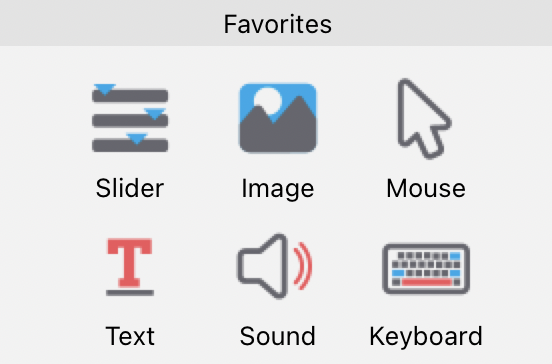
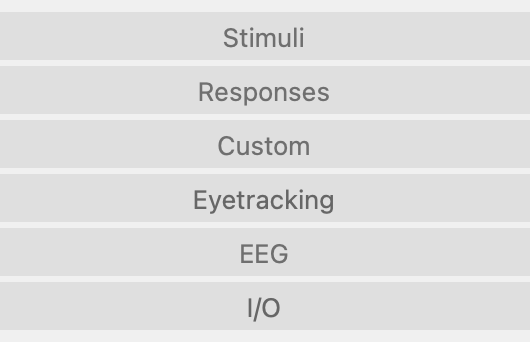
Additional components can be found by clicking on the appropriate component groups:
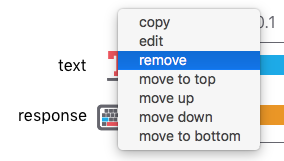
The trial routine in our flanker task has two components: a Text component and a Keyboard component:

You can identify the type of component based on the icon: The Text component’s icon is a red T. The Keyboard component’s icon a keyboard.
The Text component presents text on the screen and the Keyboard component records responses from the participant (in particular, their RT and, if set up accordingly, their accuracy).
The names of components are chosen by the person setting up the experiment (note the naming constraints described below though). In the example above, the component names are text and response.
Components have a number of properties. For example, these define the timing, position, size, and orientation of a stimulus. We will have a closer look at some of these properties in Chapter 29.
29.2 Adding and removing components
To add a component to a routine, simply click on the component (drag and drop does not work here!).
To remove a component from a routine, right-click on the component and select “remove”:
29.3 Copying and pasting components
To copy a component, right-click on the component and select “Copy”.
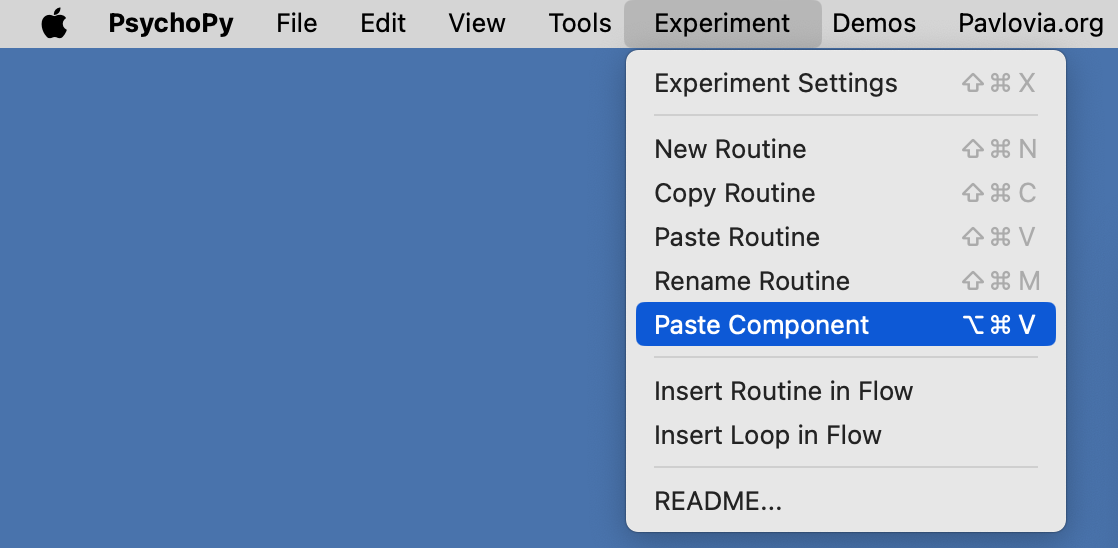
To paste a component, click on “Experiment” in the menu bar and then on “Paste Component”:
29.4 Component timing
The blue and orange bars next to the components represent information about timing:
- Both components start 0.6 s into the trial. That means that the stimulus presentation will begin 0.6 s into the trial and, at the same time, the Keyboard component will start measuring respone time. The first 0.6 s of the trial will simply consist of an empty screen.
- That both components start at the same time is important to ensure that the time measured by the Keyboard component will correspond to the response time (i.e., the time since stimulus onset).
- It is important that the onset of the Keyboard component coincides with the onset of the imperative stimulus (i.e., the stimulus to which participants should respond).1
- That fact that the two components only start 0.6 s into the trial also introduces a short gap between trials2 and thus avoids that a new stimulus is presented immediately after a response.
- Both components extend beyond the “t (sec)” label. This means that their duration is infinite (however, as experiments lasting infinitely long tend to be unpopular with participants, you can tell PsychoPy to end a routine when a response is given!).
If we change the duration of the Text component to 0.5 s, the timeline will change accordingly and the blue bar now has a length corresponding to 0.5 s:
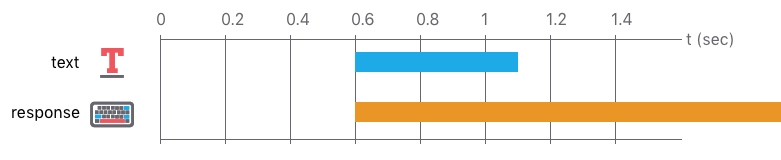
The colour of the component timeline refers to the type of component used:
- Blue is typically used for components that present stimuli or collect data continuously (e.g., camera or microphone).
- Orange is used for components that expect active, discrete responses from participants.
29.5 Naming components
The same rules as for naming routines apply.
Note that it is good practice to give components names that indicate what they do.
29.6 Confirmation
Please confirm you have worked through this chapter by submitting the corresponding chapter completion form on Moodle.